

How to Choose the Right AI Video Generator for a Trending Effect
Choose an AI video generator by matching the effect to its inputs, duration, format, audio and preview. Learn to read tool guides and recommendations.
Tool Guides
The right AI video generator is the one that supports the effect you want to make, the material you have, and the output you need. Start with those requirements, then compare inputs, motion control, duration, aspect ratio, audio and preview limits. A popular tool can still be a poor fit for a particular trend.
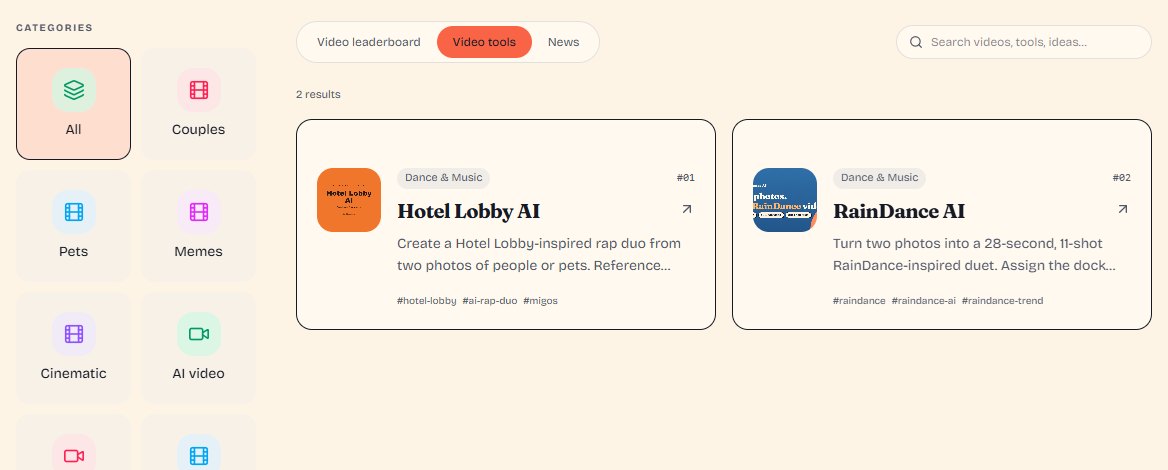
Use the AI Trending Video tool directory to compare workflows, or start from a trending video example and explore its related creation tools. This guide explains how to turn those suggestions into a practical shortlist.
1. Why different effects need different tools
A coastal duet, a talking portrait and a restyled dance clip may all be described as “AI video,” but they ask the generator to solve different problems. One needs two recognizable subjects across several shots. Another needs mouth movements aligned with speech. A third needs to transform existing footage while retaining useful motion.
Before comparing tools, write a short brief: “I have two separate portraits and want a vertical duet with reference-based movement and sound.” That is more useful than “I want a viral AI video.” It gives you requirements you can check on a tool page.
For example, the Raindance tutorial focuses on a coastal two-person sequence. The Hotel Lobby remake guide focuses on a duo performance around a shared microphone. Both involve two subjects, but their staging, motion and sound requirements differ. Match the workflow before comparing price.
2. Compare Text-to-Video, Image-to-Video and Video-to-Video
Text-to-Video: start with a described scene
Text-to-Video creates moving imagery from a written description. It is a useful starting point when you have a scene in mind but do not need to anchor the result to a particular photograph. Describe the subjects, setting, action and camera movement.
If the effect depends on a specific person's likeness, check whether the selected model also accepts identity references. A name or detailed text description alone is not a reliable substitute for a supported reference workflow.
Image-to-Video: start with a visual reference
Image-to-Video uses an image to guide the generated clip. It can suit animating a portrait, bringing a composed scene to life, or creating motion from an image you have prepared. In its Image-to-Video prompting guide, Runway explains the relationship between the input image and the text description of motion.
Do not assume that “Image-to-Video” means two separate portraits are supported. Some workflows accept a starting frame; others provide multiple reference slots or a prepared two-photo experience. Confirm the number and purpose of the upload slots.
Video-to-Video: start with existing footage
Video-to-Video uses a clip as input for transformation or editing. Depending on the tool, you might change the appearance of a scene or use existing motion as guidance. Check which elements the tool can preserve and which it may alter; an input video does not guarantee frame-perfect motion or timing.
Also distinguish a provider's built-in reference performance from uploading your own reference clip. A prepared trend generator may offer the former without accepting arbitrary video uploads. “Follows a reference” and “supports custom Video-to-Video” are different capabilities.
These labels describe starting points, not a quality ranking. Choose text for a described concept, an image when the starting appearance matters, and video when existing footage is central to the task. Then verify the selected tool's specific controls.
3. Compare photos, duration, aspect ratio, audio and preview
Photos: what must you prepare?
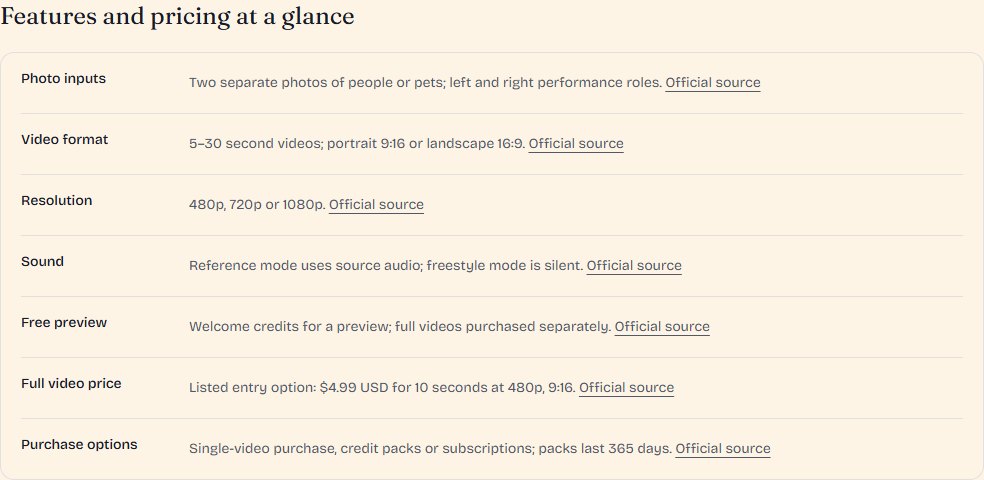
Check whether the tool needs one image, two separate portraits, or a shared composition. For a duet, confirm how it assigns the left and right performers and whether it accepts people, pets, or both. Review supported file types and minimum image size before preparing the uploads.
Duration: one shot or a complete sequence?
A short generated shot and an assembled multi-shot video are different deliverables. Check the length of each generation, whether you can extend it, and whether separate shots require editing. If identity consistency across cuts matters, inspect more than the opening frame.
Aspect ratio: will the composition fit?
Decide where you intend to post before generating. A landscape, 4:3 or portrait output can frame the same two subjects very differently. Cropping a wider composition into vertical may cut off a performer or the shared microphone. Confirm native output options rather than assuming every tool exports every format.
Audio: soundtrack, speech or silent output?
Look for an explicit explanation of sound. Does the selected mode include a soundtrack, generate speech, synchronize mouths, or export a silent clip? These are separate features. For example, Hotel Lobby AI's official page distinguishes reference mode with source audio from silent freestyle. Check the current settings before choosing a mode.
Preview: what can you actually evaluate?
Determine whether a preview is a still, a short moving sample or the full sequence at reduced quality. Use it to inspect the features it actually shows: subject likeness, framing or a brief motion. A two-second sample cannot establish that every transition in a longer video works. Confirm whether full export requires a separate payment and whether watermarks or download limits apply.
4. Read the tool detail page and the recommendation reason
The tool directory is useful when you already know your requirements. Open a listing to read its description, capability labels and available guide. Curated pages such as RainDance AI and Hotel Lobby AI add specifications, suitable uses, limitations, steps and source links. The checked date helps you judge how recently the public information was reviewed.
Treat the source links as a way to verify a claim. A guide based on the provider's public specification is not the same as an independent hands-on test. Where a guide says output quality or timing has not been tested, keep that limitation in your decision.
If you begin from a video, scroll to its recreation-tools section and read the recommendation reason:
- “Reviewed suggestion for recreating this video” identifies an explicitly selected recommendation.
- “Matches this video's tags and required capabilities” describes a catalog match. Check that it supports the specific subject, motion and output your version needs.
Neither label establishes which software the original creator used. A recommendation helps you find a plausible recreation workflow; it does not promise an identical result. Placement or ranking is also not a substitute for checking suitability.
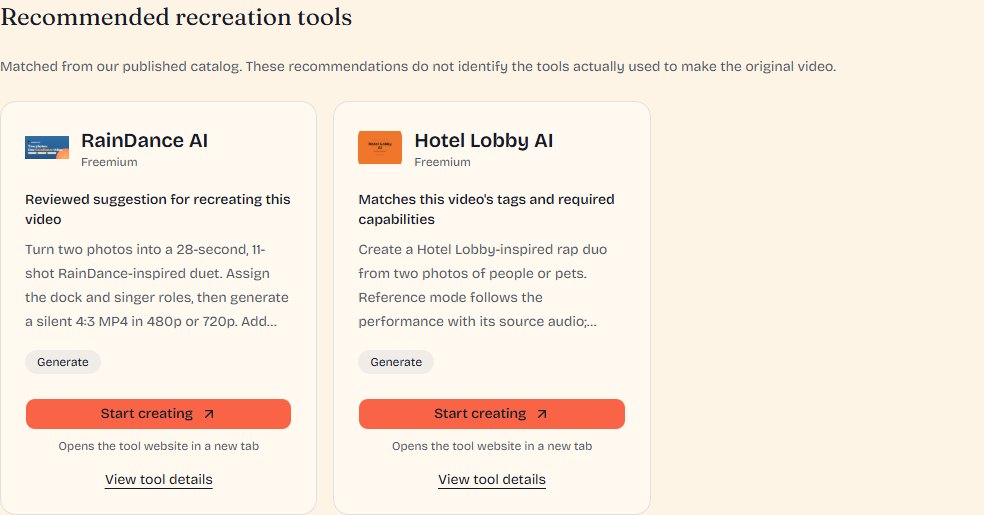
Use Tool details to keep comparing on this site. Use Start creating when you are ready to open the provider's website in a new tab. If no related tool is listed, browse the directory using the requirements from your brief.
5. Confirm these details before choosing a generator
Before uploading or paying, check the following on the provider's current website:
- Input compatibility: the number of photos, supported subjects and any custom reference requirements.
- Output fit: the duration, resolution and aspect ratio of the actual option you are buying.
- Sound and editing: whether audio, lip sync, shot assembly or further editing are needed.
- Full cost: the price or credits for your settings, preview limits, retry charges and any recurring billing.
- Usage terms: permission to use your source material, the provider's upload and deletion policy, and the intended use of the finished video.
- A useful test: what a preview can tell you about your own photos before you commit to a full result.
For a Hotel Lobby style duo, start from the video guide, read its tool recommendation, then inspect the tool's inputs and sound modes. For a Raindance sequence, compare the effect guide with the tool's framing and sequence requirements. The question in each case is whether the workflow fits your version.
Ready to compare? Browse AI video tools or choose a trending effect first. If you are new to the site, read How to Find Trending AI Videos and the Tools to Make Them for the full discovery path.